
The problem: a diagram without its service history
A site drawing can show where a device belongs, but it does not always explain what happened to that device. A photo may help locate a camera, while a separate note contains the last service action. The technician needs to connect these pieces before planning the next visit.
Plan connects visual planning with device records. The site diagram gives spatial context, while device history adds the sequence of recorded work. Together they offer a practical way to review an installation before deciding what information the next technician will need.
Implemented planning tools
The application supports 2D network plans with devices and cables, plus security layouts placed over site photos. Camera viewing cones provide a visual planning aid. Device history keeps recorded information associated with the equipment instead of leaving it in a separate conversation.
Search across sites supports finding recorded items when you are not sure which diagram to open. PNG and PDF exports give a way to share a visual document outside the application. Exported files are snapshots and should be checked against the current project before use.
How to evaluate the workflow
Open the live project and check the current registration and access options. Begin with a fictional site: place a few devices, connect a cable, and inspect the relation between the visual plan and each device record. Use a non-sensitive sample photo when evaluating the security layout.
Next, add an example history entry, look for the device through search, and review an export. This small end-to-end exercise helps you judge whether the available workflow matches your documentation habits before importing real site information.
Planning the site handover
For a useful handover, review the diagram together with the actual site requirements: device positions, cable labels, mounting details and the information that should appear in an export. Camera viewing cones help discuss placement and intended coverage during that planning conversation.
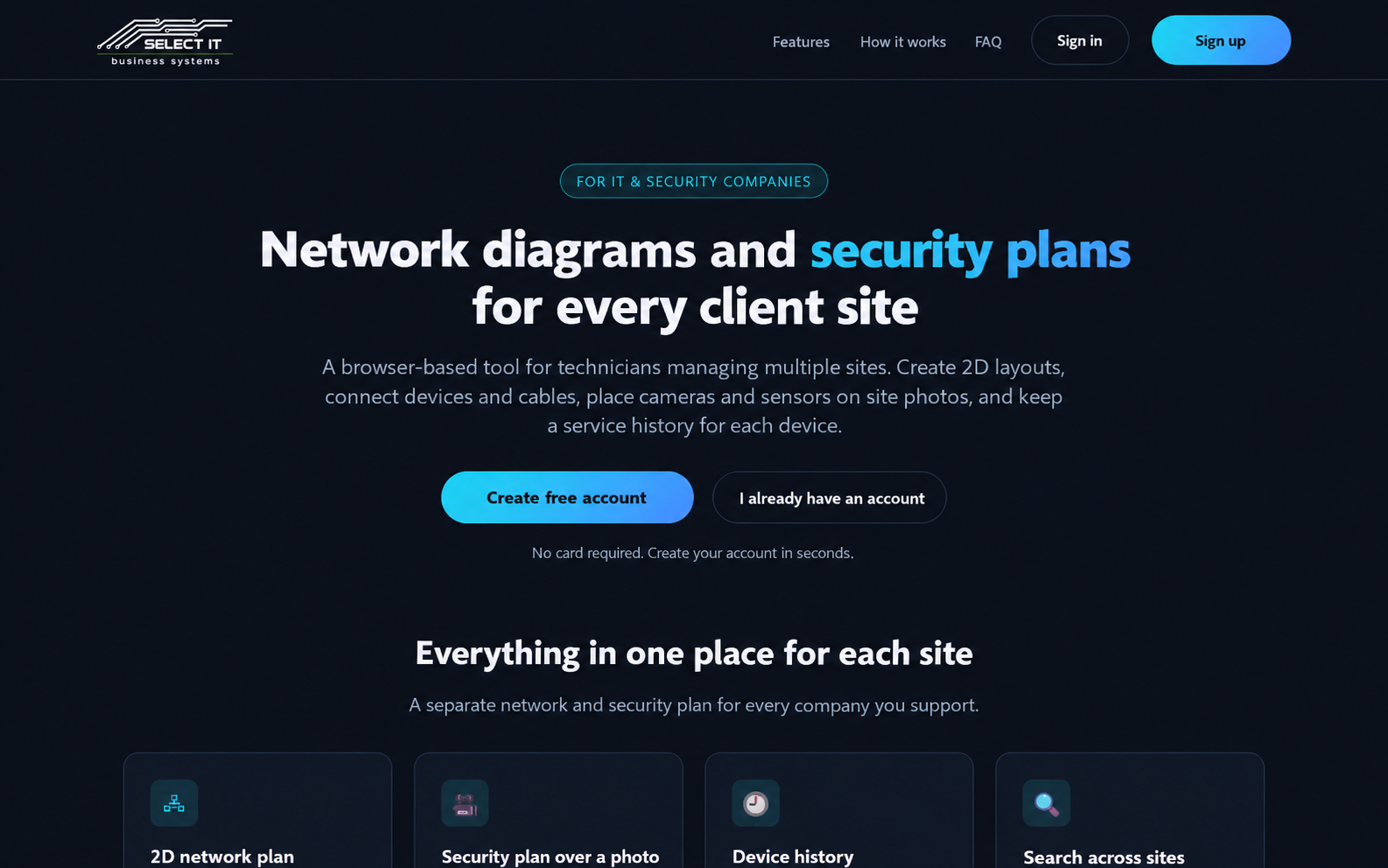
The portfolio image is an English-localised preview. On the live project, explore the available interface languages and account options, then try a sample layout and export. This lets you assess the actual working steps alongside the visual example shown here.
From this example to your own field tool
A custom application can be scoped around site records, inspection tasks or equipment histories relevant to your team. Start with a sample record and describe who updates it, who reads it and what must be available during a site visit.
We can then define the first workflow and acceptance checks rather than collecting unrelated features. Any data import, map or image tools, permissions, exports, hosting and maintenance need a clear place in the written proposal. Existing Plan features are examples, not a universal package.
Practical questions
Is the English image the current application interface?
It is an English-localised portfolio preview. Check the live application for the interface languages and features currently available.
What can I share outside the application?
Plan supports PNG and PDF exports. Review a sample export for labels, layout and the information your colleague or customer needs, then keep it aligned with the current project record.
Discuss your project
Describe the workflow you want to improve. We agree the first version, deliverables and price before development.
Discuss your project